How to Export FIT Files from Strava, Garmin, COROS, & Suunto
A .FIT file contains raw GPS coordinates, pace, heart rate, elevation, and cadence data used by RunCut to render route maps, performance charts, and real-time stats overlays on your workout video.
Follow the step-by-step instructions below for your platform or sports watch:
1. How to Export from Strava
You can download the original file format (which is typically .FIT if it was uploaded from a sports watch) directly from the Strava website.
Open your web browser (Safari, Chrome, etc.) and log into strava.com (Note: This must be done in the browser, not inside the strava mobile app).
Go to your Activity Feed and click on the specific running or cycling activity you want to export.
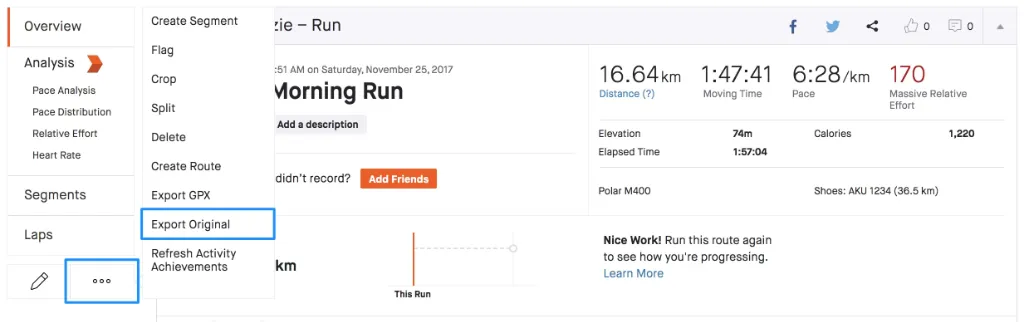
On the left side of the activity page, click the Actions button (represented by three dots ...).
Select Export Original from the dropdown menu.
Save the file. If the activity was originally recorded on a GPS watch, it will download as a .fit or .fit.gz file (which you can unzip).
2. How to Export from Garmin Connect
Garmin watches record workouts natively in .FIT format. You can retrieve these files directly from Garmin Connect.
Open your web browser (Safari, Chrome, etc.), go to connect.garmin.com, and log into your Garmin account.
Click on Activities > All Activities in the left sidebar and select your workout.
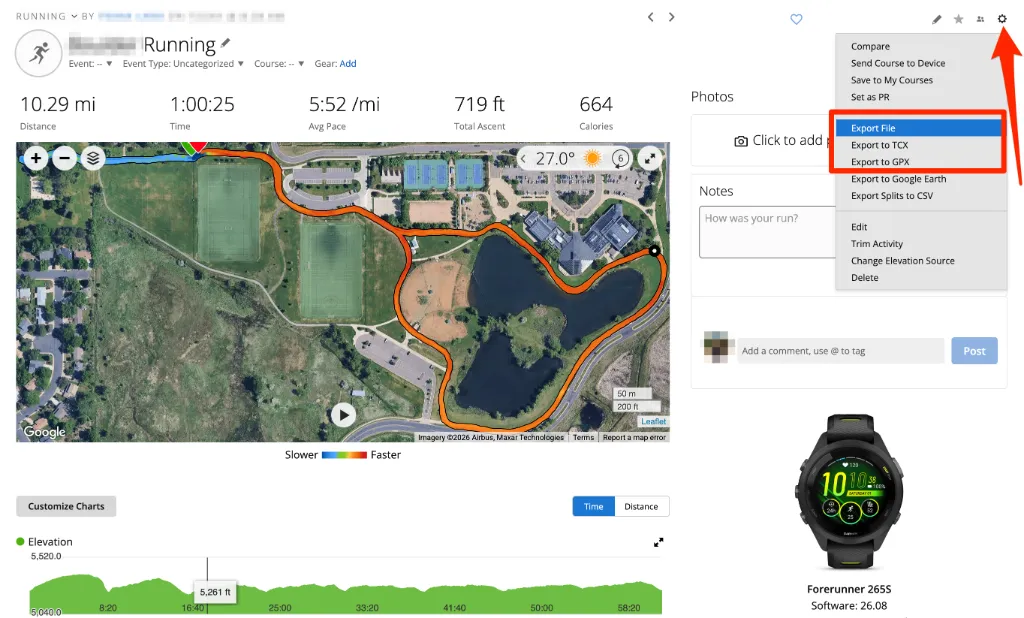
In the top-right corner of the activity details page, click the Gear Icon (Settings).
Click Export File from the menu.
Your browser will download a compressed .zip folder. Extract it to get the raw .fit file.
3. How to Export from COROS
COROS allows you to export .FIT files directly from their mobile app or their web portal.
Option A: From the COROS Mobile App (Easiest)
Open the COROS App on your smartphone.
Go to the Workouts history page and select your activity.
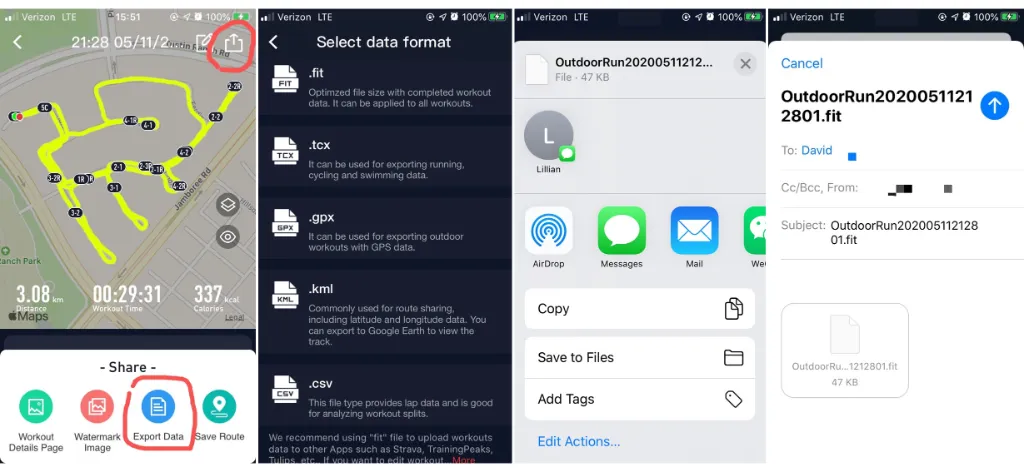
Tap the three dots (...) menu in the top-right corner.
Select Export Data.
Choose .FIT from the list of formats.
Share or send the file to your computer, or save it directly to your phone's files.
Option B: From the COROS Training Hub Web Portal
Go to training.coros.com on your computer.
Navigate to Workout List and click on your workout.
In the upper-right corner of the activity details, click the Export button.
Select .fit format to download.
4. How to Export from Suunto
Suunto users can easily export their workouts directly to .FIT format via the official Suunto mobile app.
Open the Suunto App on your iOS or Android device.
Select the activity you want from your Diary.
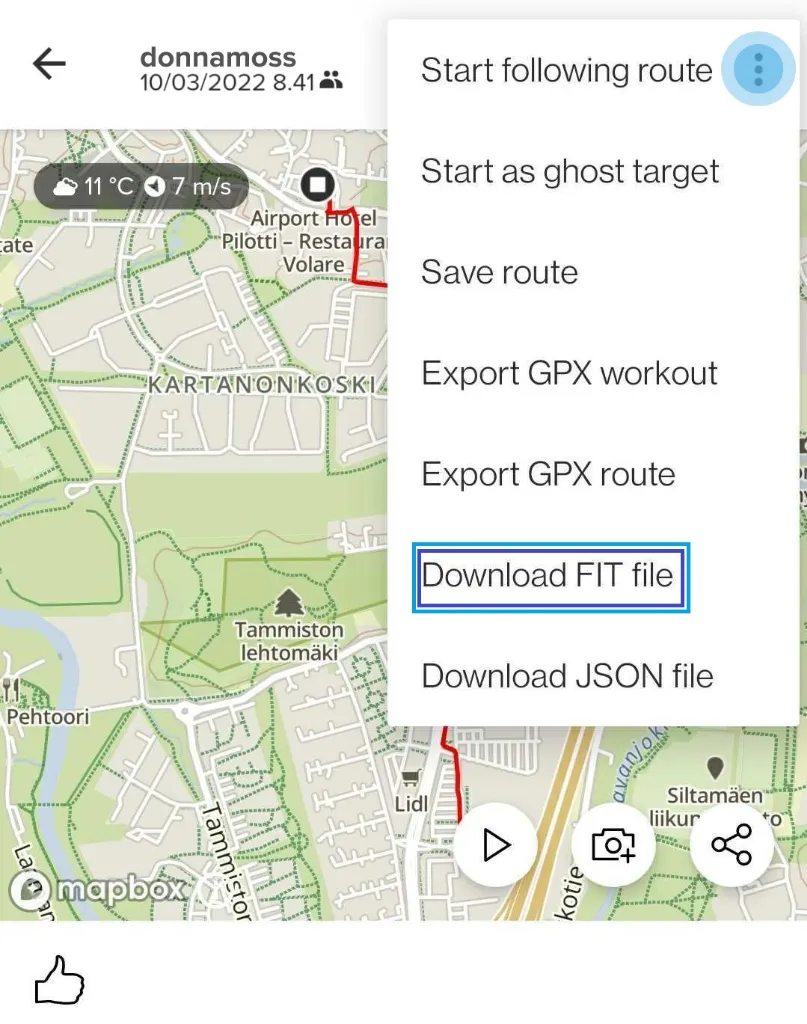
Tap the three dots (...) icon in the top-right corner of the screen.
Tap Download FIT file (or Export FIT file).
Save the file to your device's storage or send it to your email/cloud drive.
5. Visualizing Your Data in RunCut
Now that you have exported your .FIT file, you can import it into RunCut to overlay your workout metrics and route map onto your video.
Once imported, RunCut automatically parses the file and maps the data to the video canvas:
Route Map: Draws your running or cycling track over customizable map layers.
Real-time Performance Gauges: Overlays responsive UI widgets displaying your Speed, Heart Rate, Elevation, and Pace metrics synced second-by-second.
Dynamic Templates: Formats your workout stats into stylish sports video overlays.
How to Import and Render:
Open the RunCut app on your phone.
Go to the Import tab and select Import .FIT.
Choose the .fit file you exported from Strava, Garmin, COROS, or Suunto.
Pick your favorite template, customize the overlay widgets, and export your video!