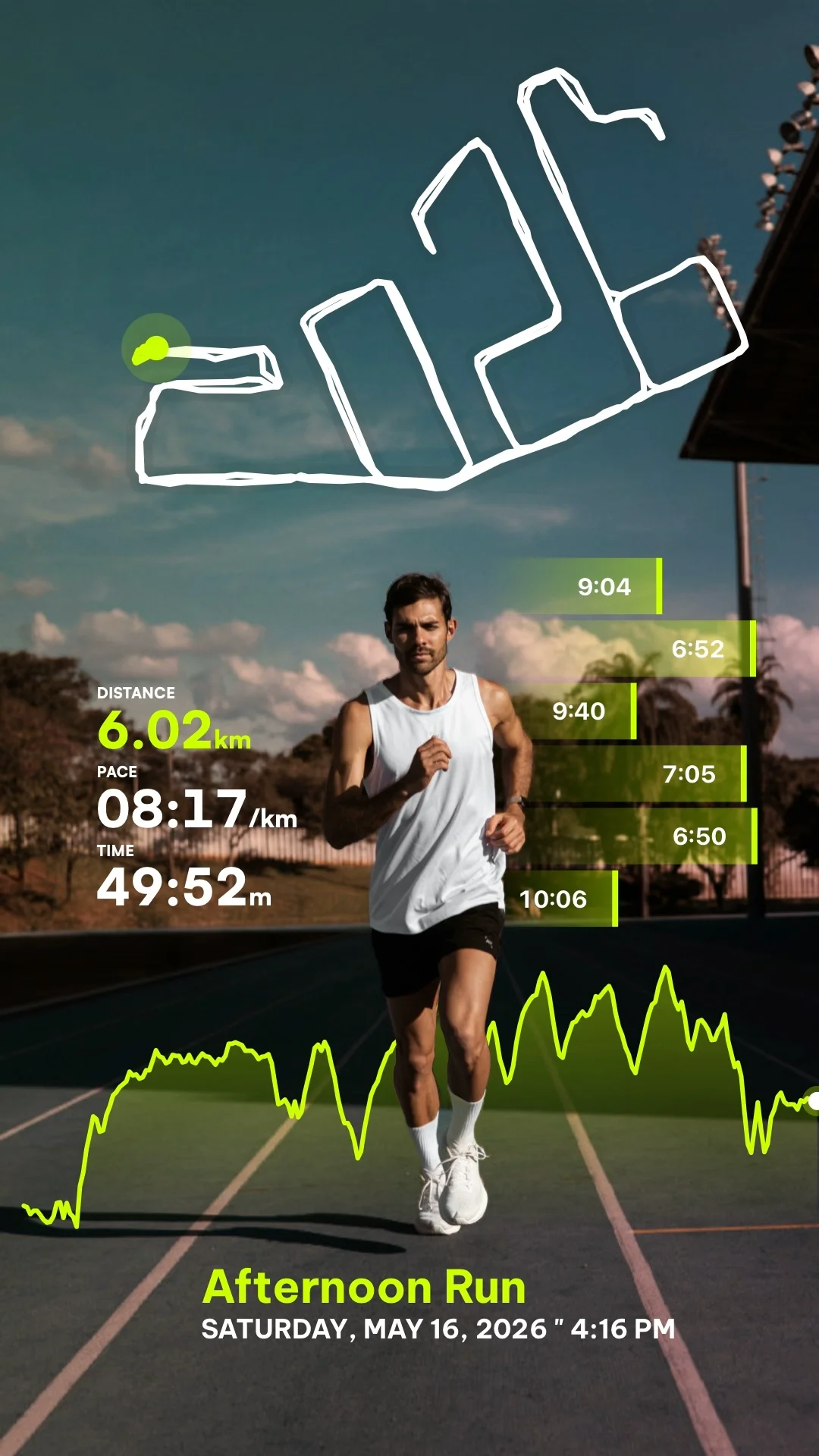
To overlay stats on a running or cycling video, you need to combine your GPS and performance metrics (from Apple Health, Strava, or sports devices) with your recorded video files. RunCut makes this process automatic, enabling you to add dynamic telemetry overlays and animated route maps to your clips in just a few taps.
Whether you want to create a quick animated map summary of a long run or synchronize second-by-second workout telemetry onto a recorded video, here is exactly how to do it.
Step 1: Record Your Workout and Video
Before importing, ensure you have recorded both your activity data and video clips:
- Workout Data: Track your running or cycling activity using an Apple Watch, Garmin, Wahoo, COROS, Suunto, or any device that exports standard workout file formats (like
.FITor.GPX). - Video Clip: Shoot high-quality vertical or horizontal footage of your workout on your phone or action camera (like GoPro or Insta360).
Step 2: Import Your Activity into RunCut
Open the RunCut application on iOS or Android and load your fitness metrics:
- Connect Health Platforms: Grant permissions to import activities directly from Apple Health, or connect third-party accounts.
- Manual File Upload: Alternatively, you can directly upload a
.FITor.GPXfile exported from Strava or your watch dashboard.
Step 3: Choose Your Video Sync Mode
RunCut provides two unique methods to overlay stats depending on your goal:
Mode A: Recap Video (Animated Route Map)
Perfect for summarizing long runs, trail routes, or cycling stages where you don’t have video footage of the entire workout.
- RunCut takes your GPS coordinates and generates a 3D animated route map recap showing your progress, altitude profiles, and key milestone stats (like total distance, duration, and average pace).
Mode B: Sync with Video (Live Overlay)
Perfect for POV action camera footages or clips of you running or riding.
- Select a video clip from your gallery, and align it with the exact timestamp of your workout. RunCut will synchronize and overlay your metrics (speed, heart rate, cadences) second-by-second as the video plays.
Step 4: Customize Your Telemetry Layout and Style
Choose from a variety of professionally designed overlays to match your style:
- Stat Templates: Toggle metrics such as speed, heart rate, distance, elevation gain, cadence, and calories.
- Map Integration: Add a mini-map inset showing your live position moving along the route.
- Color Palettes & Typography: Choose neon accents, sleek dark modes, or clean minimal styles to match the vibe of your workout.
Step 5: Render and Export in up to 4K
Once you are satisfied with the preview:
- Tap Export to render your video.
- Select your desired output resolution (supporting up to 4K for crystal clear quality).
- The video is rendered locally on your device and saved directly to your camera roll, perfectly optimized for sharing on TikTok, Instagram Reels, or YouTube Shorts.